Saturday, 7 May 2011

Week 1 3D Lab 2 (Primitive Robot)

Creating a Robot that fits into the story or situation.

Original Primitive Robot

 Sketch from Original Primitive Robot (Front View)

Sketch from Original Primitive Robot (Side View)

  
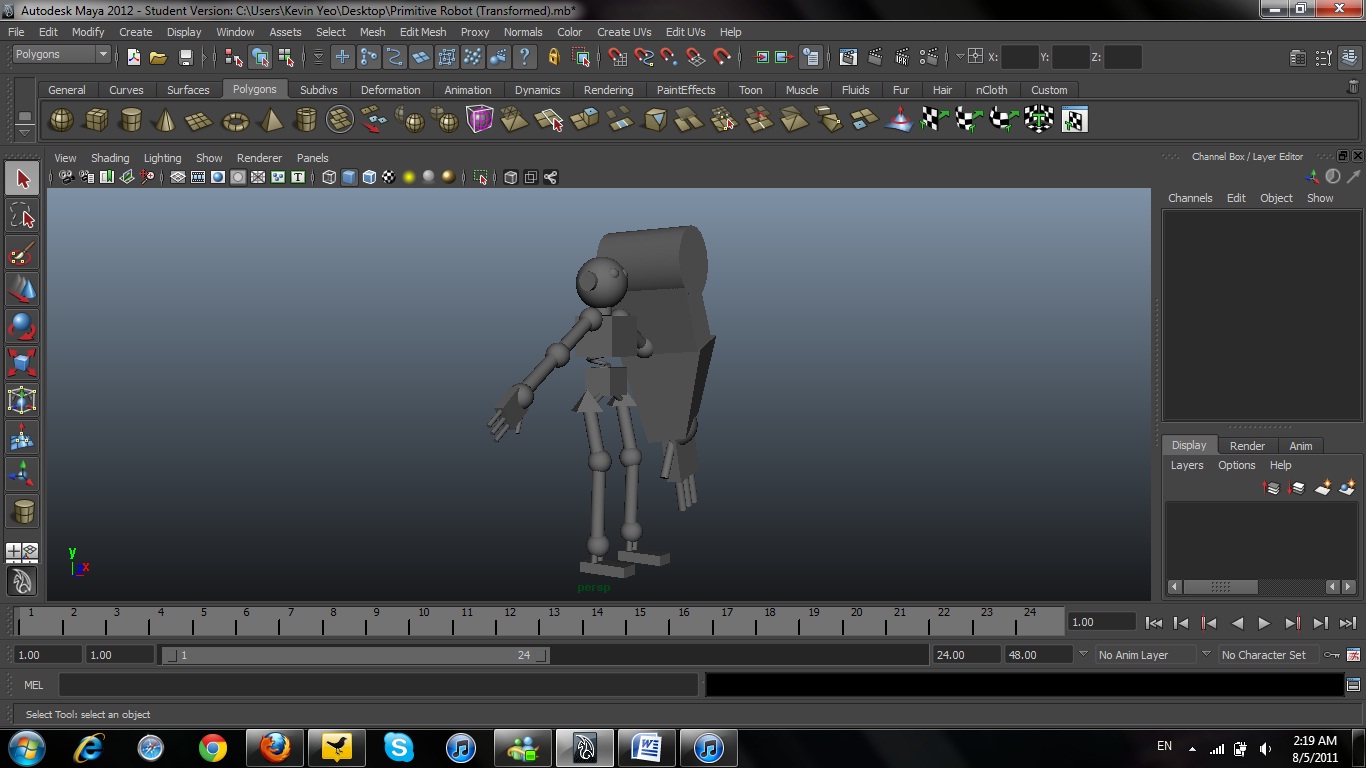
Transformed Primitive Robot (Front)

Transformed Primitive Robot (Side)
 The Transformed Primitive Robot is in its security state. That explains why it has a gigantic large metal plate on its left arm to protect the Jimmy and his brother. The other hand is left in its ordinary state to pick up things and also grab Jimmy and his brother in case there is any emergency of escaping the house. Jimmy used his extraordinary wisdom to quickly reset the robot back to its ordinary form, preventing their parents from getting hurt by such a HUGE GIGANTIC ARM.

Wednesday, 4 May 2011

Week 2 Lab 2 (Part 2)

Gears made using the shape "Pipe" and also using tools of Extrude.
 

Sunday, 1 May 2011

Week 1 3D Exercise 3 (Form, Shapes and Spatial Relationships)

Prisons are meant to be scary, powerful looking places, while Toontown is meant for fun and childlike enjoyment - how is this reflected  in the lines and angles of the buildings?

Prisons have really straight buildings and the angles of their buildings are right angles.
However, in Toontown, the buildings are never found in straight lines. They are curved and wavy with rounded smooth edges.

How does the sense of scale reflect the different purposes of the prisons and Toontown?


Prisons have very squarish looking buildings and they are built very neatly in a line. This makes the prison boring and also representing the dullness through the colours of their walls.
On the other hand, Toontown buildings are very curvy and spherical. They are also painted in a large variety of bright colours. Hence creating a very bubbly and cheerful atmosphere. 

Prisons in USA


 Mickey’s Toontown in Disneyland, Tokyo


Week 1 3D Exercise 2 (3D Robot)

 Sketching robots from Images.

 Front View of Robot

Wireframe of Robot

Week 1 3D Exercise 1 (3D Sketch)

Front View of Tank

Back View of Tank

Side View of Tank

Sunday, 24 April 2011

Week 1 Introduction To Maya (Cylinders and Cubes)

Introduction to Maya

To open a scene:
1) File > Open Scen (Option Box)
2) Make sure Execute script nodes and Ignore Version are checked.

*In Maya, there only two types of File Extensions. They are only mb and ma. We are normally saving files as mb (Maya Binary), not ma (Ascii).
* Obj. files are object files able to be opened by Maya. You have to convert all materials to Obj. file format if you want to work with Maya for that oject.

Keyboard Shortcuts:
Keyboard 4 - WireFrame
Keyboard 5 - Hardware shading (Gray)
Keyboard 6 - Texture/Colour Shading

PC(ALT) - MAC(FLOWER SHAPE) + Left Mouse Button - TUMBLE
                + Right Mouse Button - PAN
                + Middle Mouse Button - TRACKING
                + Scroll Middle Mouse Button - ZOOM

To view a very large object:
View > Camera Attributes Editor > Near clipping Plane & Far Clip.

In 3D, there is a 3 point view. So there are not just x-axis and y-axis. There are x-axis, y-axis and z-axis found on the lower left of th screen.

Creating the most basic shapes:
Create > Polygon Primitives

To focus on a selected object:
Press the "F" KEY.
When you have created a new object, the new oject will be first selected and found at 0,0,0 at the very center of the screen.

To have the numerical values of the shapes, click at the top right hand corner LINED ICON.

Q = Selection
W = Move
E = Rotate
R = Scale
F = Focus

Ctrl + D = Duplicating the selected oject.

Space = 4 view portion toggle.